Activate CSV export
Lexer Activate lets you send customer segments directly to dozens of connected platforms. You can also export any segment as a secure CSV — delivered straight to your browser.
CSV exports give you extra flexibility: upload your data to additional destinations, use it across internal tools, or run your own deeper analysis whenever you need.
In this article, we’ll show you how to configure and download a CSV file quickly and securely.
What is a CSV?
CSV stands for comma-separated value file, which allows data to be saved in a tabular format. CSV is a common data format and can be used for custom analysis or to import customer records into other platforms for activation. CSV files exported from Activate will create a column for each attribute you include in the file.
Creating a CSV export
Follow these steps to download a CSV file.
Navigate to Engage > Activate.
- Click New Activation.
- On the Goal tab select Export Data.
- On the Audience & Triggers tab choose your customer Segment.
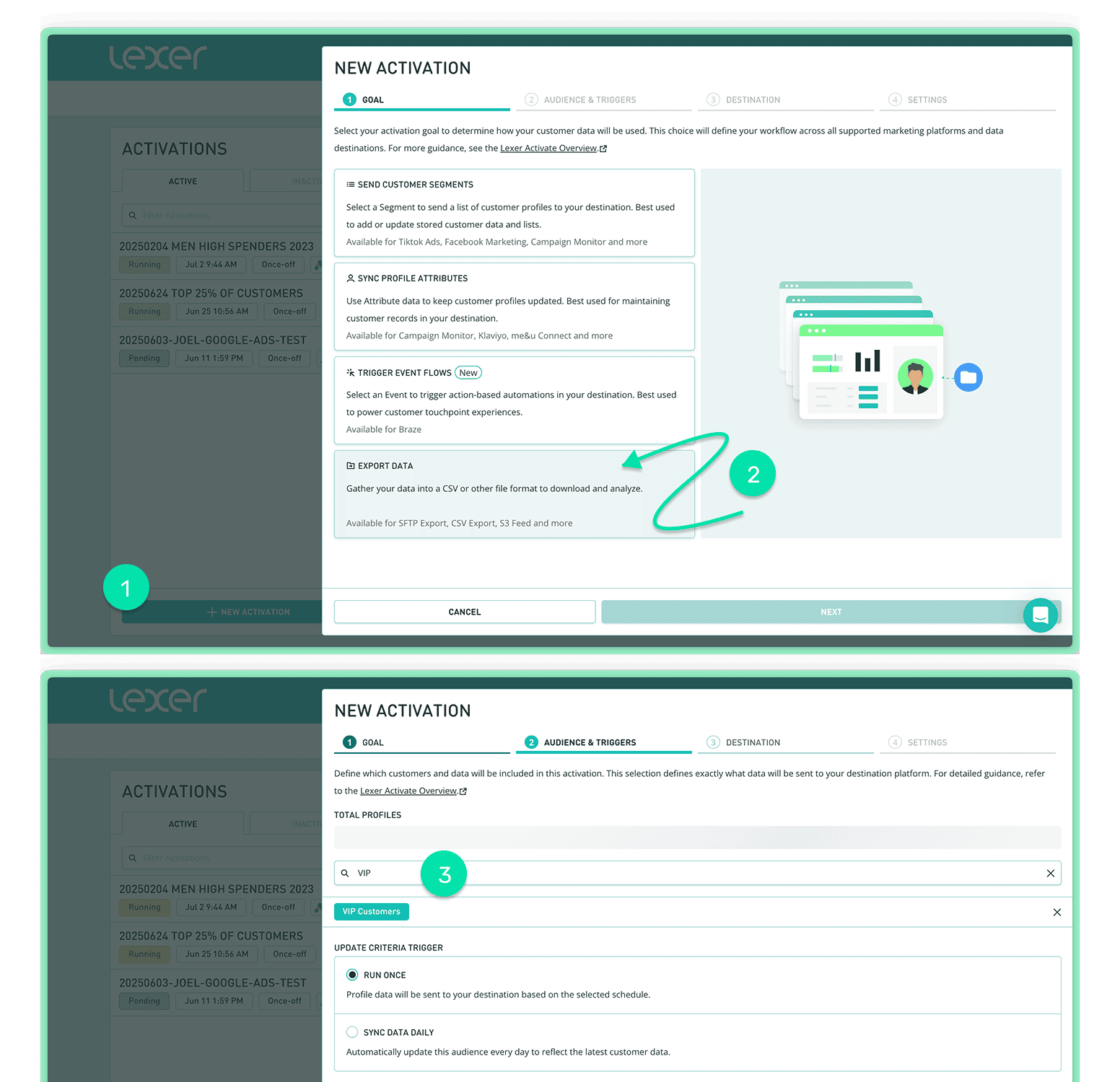
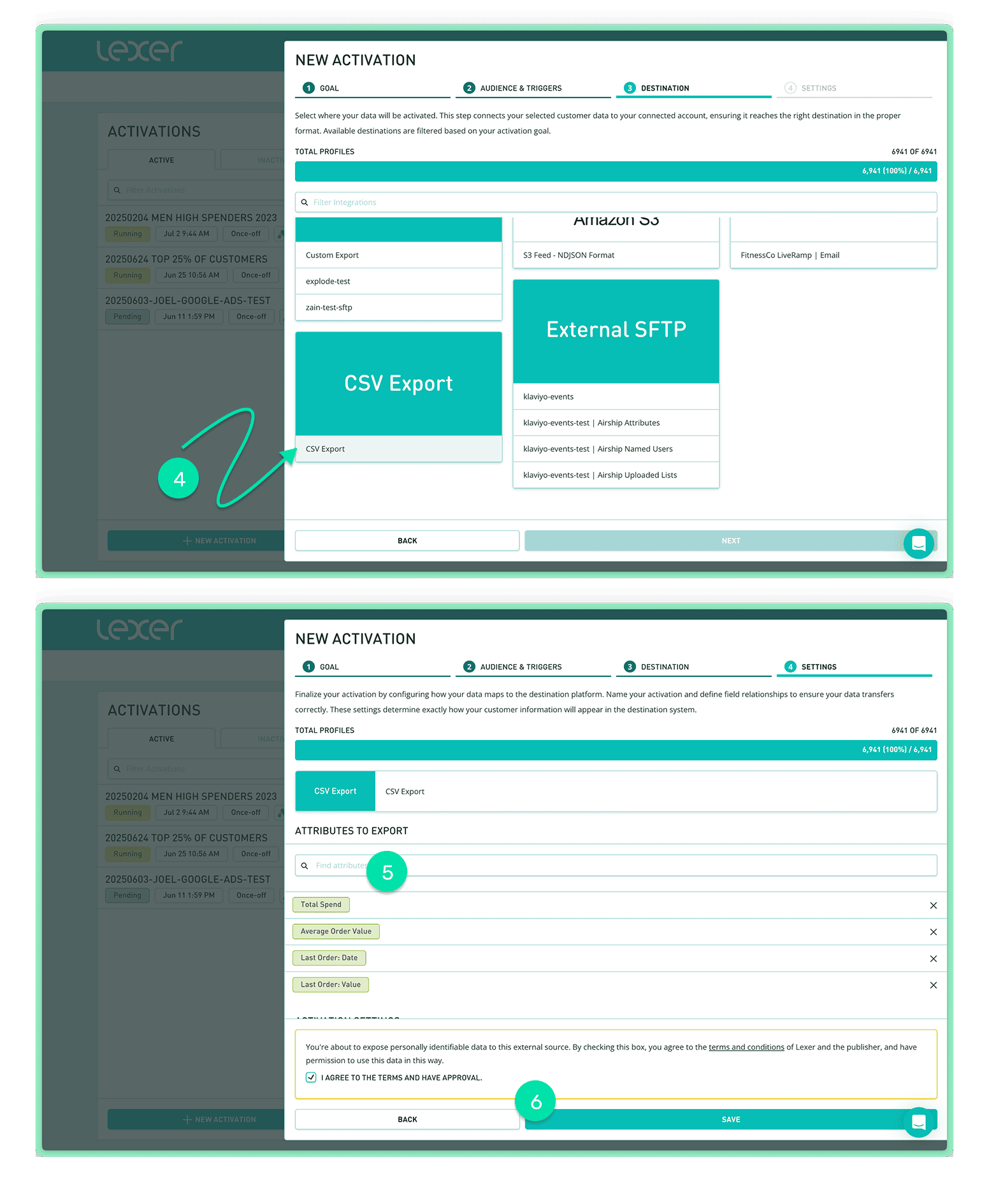
- On the Destination tab select CSV Export.
- Then in the Settings, select the Attributes you would like to include. Each attribute will be a column in the file.
- Agree to the Terms and Conditions and click Save.
Download your CSV
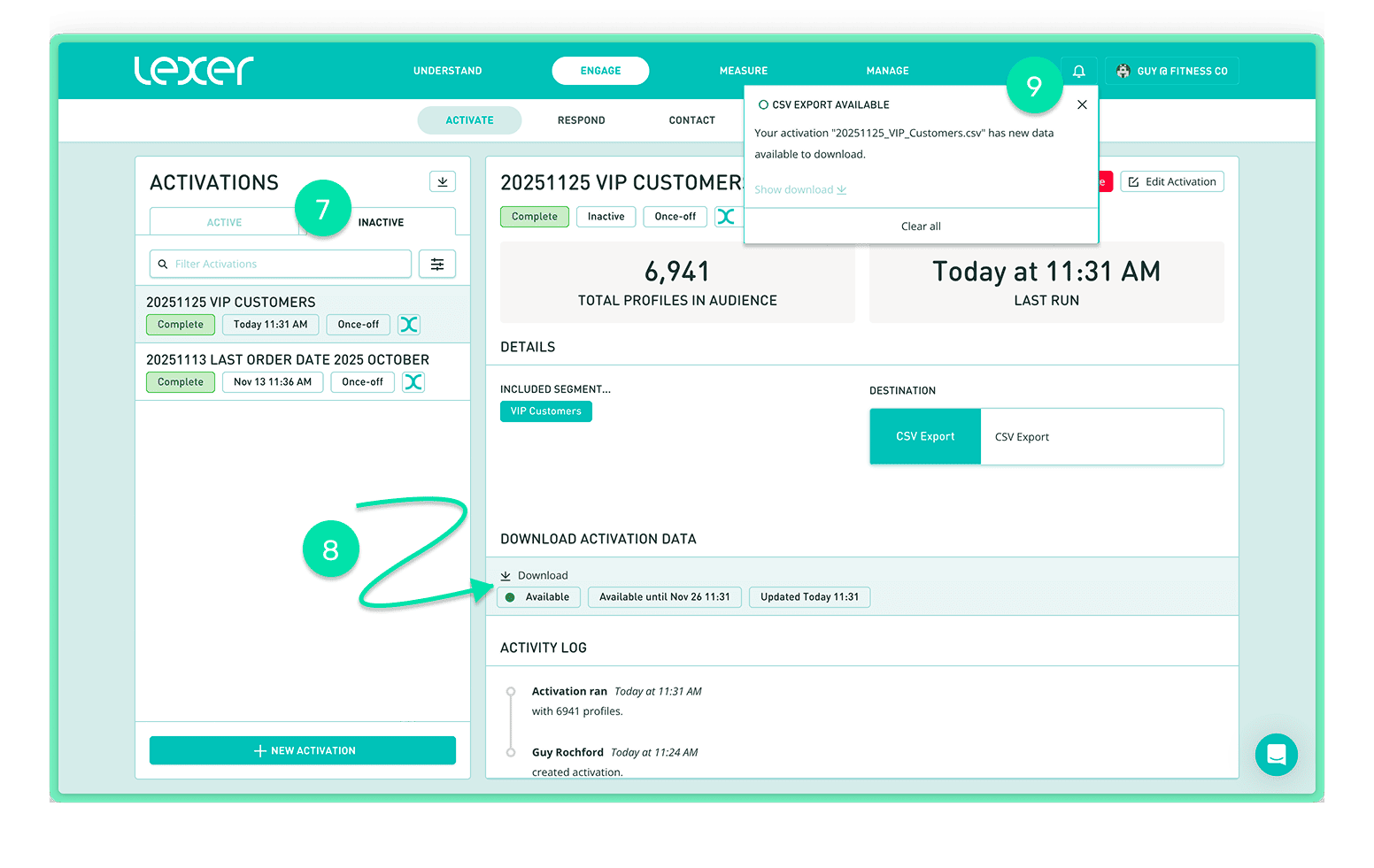
Your activation will appear in the list on the left.
- If Run Once (once-off) it will be in the Inactive tab. If Sync Data Daily (ongoing) it will be in the Active tab.
- When available the status will show as Complete, and can be Downloaded. This will save a file to your computer.
- You will also receive a hub notification and/or email when the file is available.
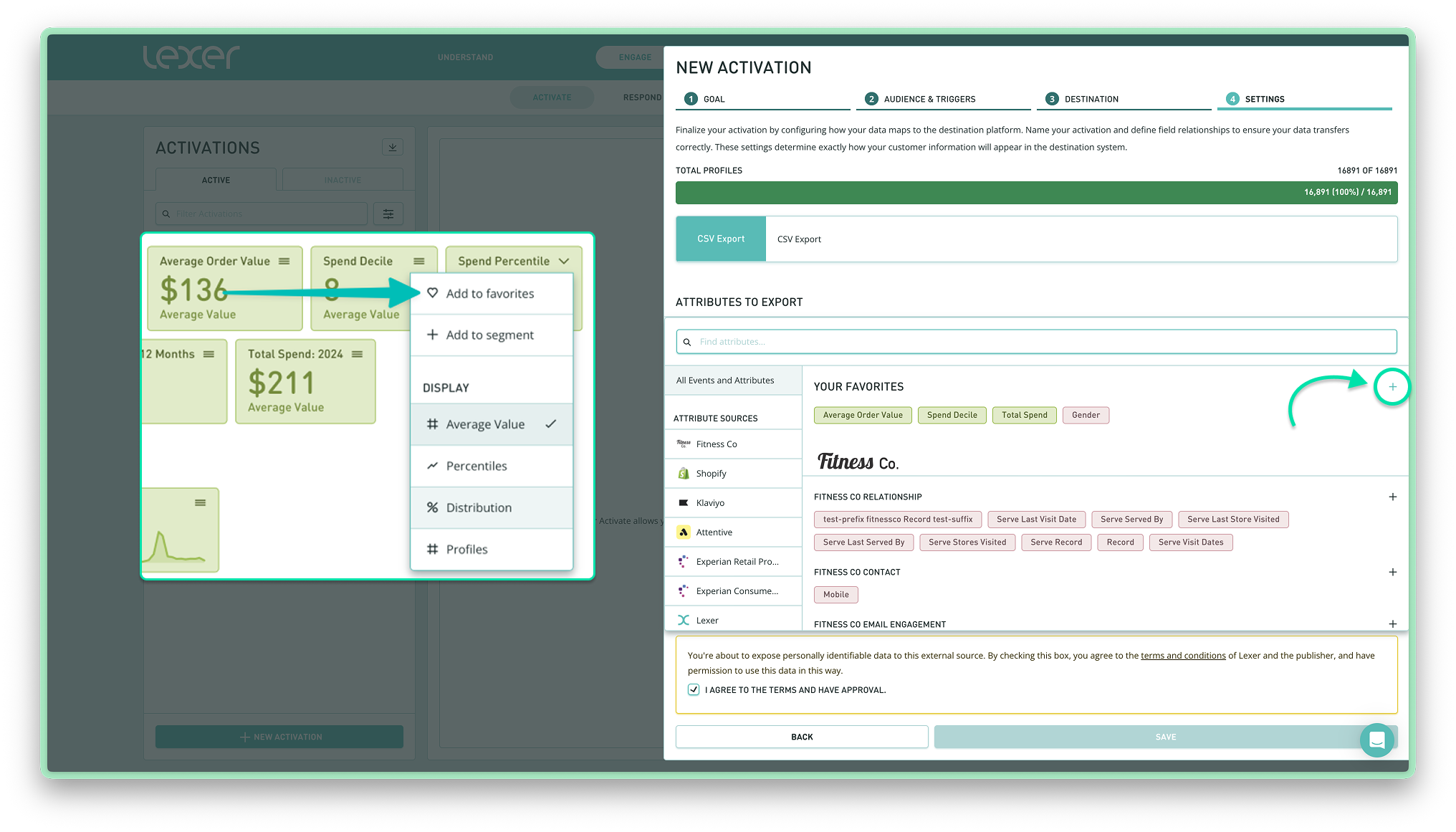
Tip: If you regularly export the same set of attributes via CSV, you can now save time by selecting your favorite attributes in advance. Simply add them to your favorites, and when you activate a CSV export, use the plus icon to quickly include those saved attributes. This makes repeat exports faster and much more efficient.